
Happy !
Runs on Moose 6.
Is currently tested on Moose 6.1. You might switch of the warning of deprecated methods under System->Settings.
See YouTube video on how to install this application for a complete 14 minute description on how to install and run.
Go to Moose Analysis Installation and download an image for Moose 6.0. Extract the zip file, no installer is needed.
Install the Pharo Launcher from https://ci.inria.fr/pharo/view/Launcher/job/Launcher/ When the installation is done, choose a Moose 6.0 image.
Execute the Pharo.exe in the extracted folder. Make a left mouseclick into the Pharo desktop and select Playground. Paste the following code into the Playground:
Gofer new
    smalltalkhubUser: 'RainerWinkler' project: 'RW-Moose-Diagram';
    package: 'RWMooseDiagram';
    load.
Select the complete coding with the mouse. This is mandatory because the Playground will execute only the marked part of the coding. Make a click with the right mouse button and select Do It.
Make a left mouse click in the Pharo desktop and select Moose -> Moose Panel. Click in the upper right on the icon with MSE (Import model from file). Select the mse file that is generated with a FAMIX extractor. It is also possible to extract a model from the Smalltalk coding in the Pharo image itself (Icon ST "Import FAMIX Smalltalk model from the current image"). Click on the name of the file. There will now be a list with "All accesses ... All attributes ..." Make a right click on All classes and choose Visualize -> RW Dependency graph. If the model is very big, it may need some time until the diagram is displayed. See next chapter how to work with it.
This is a tool for generating adaptable dependency graphs on complex software applications. It is not restricted to SAP. See nonetheless https://github.com/RainerWinkler/Moose-FAMIX-SAP-Extractor for further informations.
It is currently used for Smalltalk and SAP application, but is expected to work on other languages too.
This is an enhancement to Roassal for editing, storing, commenting and simplifying software diagrams that are extracted with Moose to Pharo and are displayed with Roassal.
It can generate diagrams like this:

The above diagram is part of the next diagrams. This is a commented overview of the SAP2Moose extractor that explains how data is transfered between classes:

The above diagram was used during development. After some time new classes where added. And after extracting model data again it displayed the new classes (after some manual dragging of the new elements):

With different configurations, the whole application is shown:
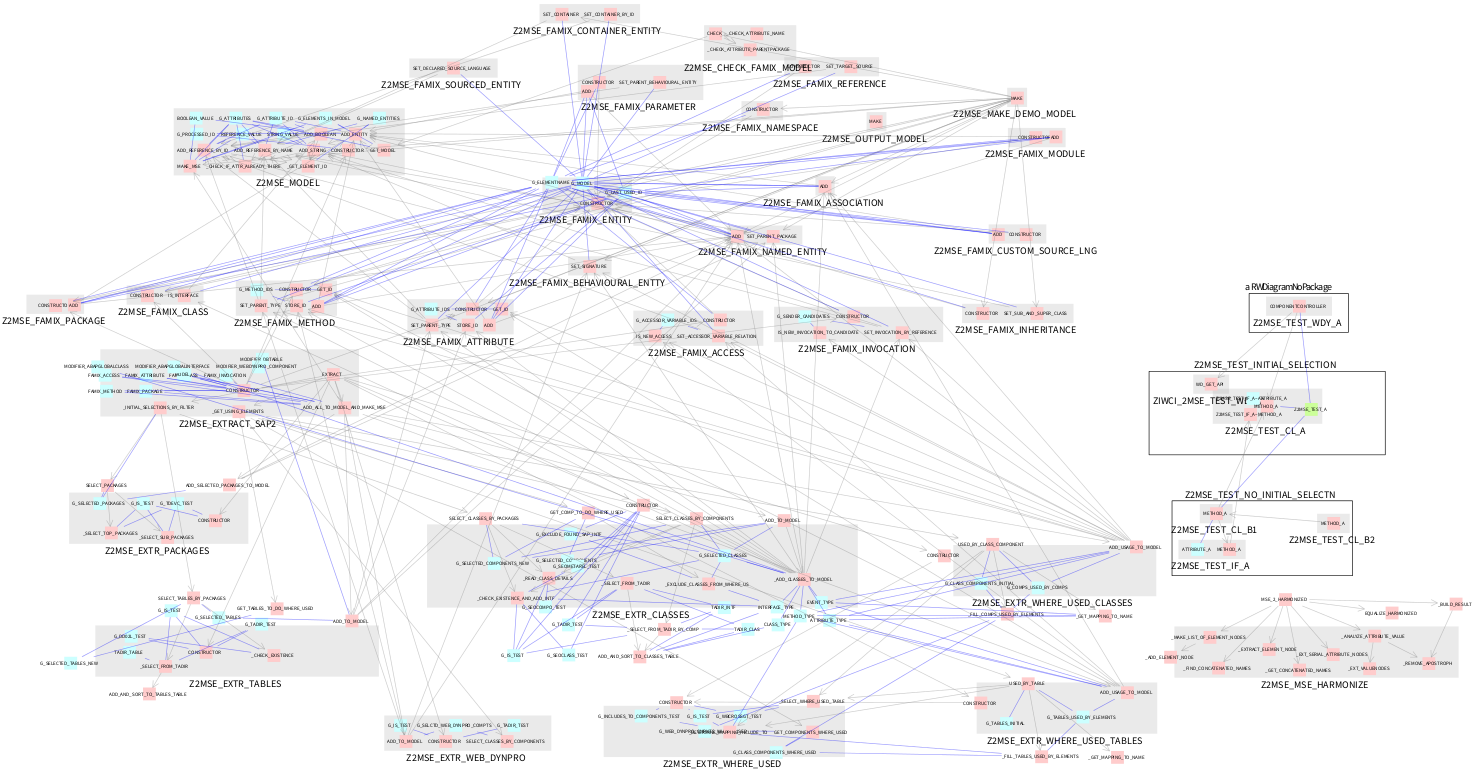
Here a complete "real life" application:

There is a new context menu available for groups of classes: 
See Moose for further informations on the analysis platform that is used.
See documentation of class RWDiagramEditor
For further details see: Github page for the SAP extractor. Remind that this tool is not restricted to SAP applications.
To load
Gofer new
    smalltalkhubUser: 'RainerWinkler' project: 'RW-Moose-Diagram';
    package: 'RWMooseDiagram';
    load.
To start open the Moose Panel, load a MooseModel and select either all classes or at least two classes. Then perform from context menu "RW Dependency graph":

See Documentation of class RWDiagram and this list of statements by context:
Clear all data
RWDiagram refresh.
After this all data is to be reloaded from file or rebuild. Do this as a workaround to prevent inconsistencies that may occur if a model is extracted with new data. In this case some objects may be missed in the diagram if no refresh is done. Use this also to limit the memory consumption.
RWDiagram currentLayoutName:  'My Layout'.

RWDiagram currentLayoutName.
RWDiagram listLayouts.
RWDiagram list.

RWDiagram isReading.
RWDiagram read.
RWDiagram inActive.

RWDiagram isReadingPosition.
RWDiagram readPositions.
RWDiagram inActivePositions.

RWDiagram isReadingLayers.
RWDiagram readLayers: -200.
RWDiagram inActiveLayers.

RWDiagram preventOverlapping.
RWDiagram lCPORepeat: 10.
RWDiagram lCPOSpace: 1.
Display the actual setting for the space:
RWDiagram lCPOSpace
RWDiagram lCPOMaxChecks: 10000000.
RWDiagram allowOverlapping.
RWDiagram lCPOMaxChecks.
Display the current number of iterations:
RWDiagram lCPORepeat
To suppress box and names for packages and classes (technically the boxes are still there and can be dragged)
RWDiagram packageBoxSuppressed: true.
RWDiagram classBoxSuppressed: true.
revert by setting to false.
To change the color for the comment in the current layout (for instance transparent):
RWDiagram commentColor: Color transparent.
Returns the informations on the processed view
RWDiagram processedRTView
To read data from a file call:
RWDiagram readFromFile: 'MyFileNameWithOrWithoutPath.xml'.
The data is loaded to the current view. Existing data is not deleted but overwritten.
To save data to a file call:
RWDiagram writeToFile: 'MyFileNameWithOrWithoutPath.xml'.
The system saves the data of the current view.
Read a file named like the current Layout from a given path
RWDiagram readFromPath: 'MyPath'
To remove all temporary appearance changers from the current layout:
RWDiagram removeTemporary
It is possible to display names anonymized. Use with care. Errors may occur if settings are saved while this option is active. Set the parameter to false if needed. The parameter will always be reset when a diagram is successcully displayed:
RWDiagramAnonymize anonymize: true.
This methods can also be used on a RWDiagramElement
RWDiagram highlightIncludingMe: true usedByLayers: 1 usingLayers: 1 to: self.
To remove (RWDiagram removeTemporary) can also be performed while inspecting the view.
RWDiagram suppressOthersUsedByLayers: 1 usingLayers: 1 to: self.
To comment (add
for line break):
RWDiagram comment: 'My comment<br>Second Line of comment.' to: self.
To remove the appearance changers:
RWDiagram removeAppearanceChangersFrom: self
To color a Component of the processed view explicitely: Navigate to the FAMIX element (for instance in the Moose Panel) and execute:
RWDiagram color: Color myColor FAMIXComponent: self.
replace myColor with a valid color (green, yellow, ...)
To exclude a package, class, ... together with all sub elements from a diagram (stored to file): Open the element in an inspector and call (replace true with false to undo):
RWDiagram suppressWithChildren: true to: self.
Store positions:
RWDiagram rememberRTView: self view.
Save positions and other informations to file:
RWDiagram write: self view toPath: 'MyPath'.
Store positions and save to file in one statements (Performs the previous statements after each other):
RWDiagram rememberWrite: self view toPath: 'MyPath'.
Set processed view explicitely. Needed if this view is not the last that was executed.
RWDiagram processedRTView: self view.
Set current layout to the one that corresponds to a diagram:
RWDiagram setCurrentLayout: self view.
What is the layout the view belongs to?
RWDiagram layoutForRTView: self view.
I thank Alexandre Bergel for providing the initial coding, giving valuable tips and feedback to support the development of this tool.
I thank my company CubeServ for encouraging and supporting this development.